# Configure your Oh Dear settings per monitor
Per monitor, you can configure custom settings that apply _specifically_ to that monitor.
## Verify text on response
An additional feature of our [uptime check](uptime-and-performance-monitoring), is that it can also look at the source code of the page and match for a particular string.
By default, we just check for an `HTTP/200` code, but you can extend that to match for a pre-defined string. This can be a validation string you place in HTML comments on your site, that you can use as a status indicator.
You can also use this to check for particular HTML meta tags, titles, JSON or XML patterns, ... by including the entire tag in the verification field. For instance:
- Meta tag example: `This should always match`
- JSON example: `"active": true`
- XML example: `$8.95`
As long as the HTTP response body has that string present on the page, we'll consider the page as up.
## Minutes downtime before notification
Our default is to alert you of downtime when a monitor has been down for 2 minutes. You'll find a detailed explanation in our [uptime monitoring](uptime-and-performance-monitoring) documentation.
You can tweak this behaviour to make it alert you sooner or later, by changing the _minutes downtime before notification_ setting.
If you increase this to `10`, the monitor needs to be down for 10 minutes before we alert you. If you lower it to `1`, we'll notify you after 1 minute of downtime.
You can use this setting to tweak particularly important monitors, or to lower the false-positive alert rate on monitors that have a bad reputation.
## Broken links ignored URLs
Our crawler checks all pages on your monitor and will report broken links (timeouts, 404's, 503's, ...). Some pages on your site might be in a known-bad state, and you don't want to report on them.
In the monitor settings screen, you can ignore certain URLs that we'll never notify you about.
## Custom HTTP headers
For both our uptime checks or our mixed content & broken links crawling, you can add additional headers to be included on every request. This allows you to include things like HTTP Basic Authentication, add cookies, include a default `Accept-Encoding`, ...
In your _Monitor settings_ page, you can add custom headers as key/value pairs. For instance:
Header
Value
Authorization
Basic zL9SQ7ivcAWwmH8yyuaGZo0Fkr==
Cookie
session_id=abc; language=en; accept_js=1
Accept
application/json
Content-Type
application/json
DNT
1
Accept-Language
nl-NL,nl
You can also add shared secrets to validate requests coming from Oh Dear on your backend.
Cookie data should all be contained in a single `Cookie` header, separated by a `;` (semi-colon).
There are a few headers you can't overwrite. These are:
- accept-encoding
- connection
- user-agent
- referer
- host
- pragma
We set these to our default values.
## Custom HTTP payloads
Most monitoring is done via the `GET` method, to retrieve a page and see if it loads. We can also monitor websites via the `POST`, `PUT` or `PATCH` method and we allow you to set custom HTTP payloads to be sent with your request.
### Normal HTTP form requests
To simulate a `POST` call to a webform, and check for the result, you can change your monitor on Oh Dear to the following settings.
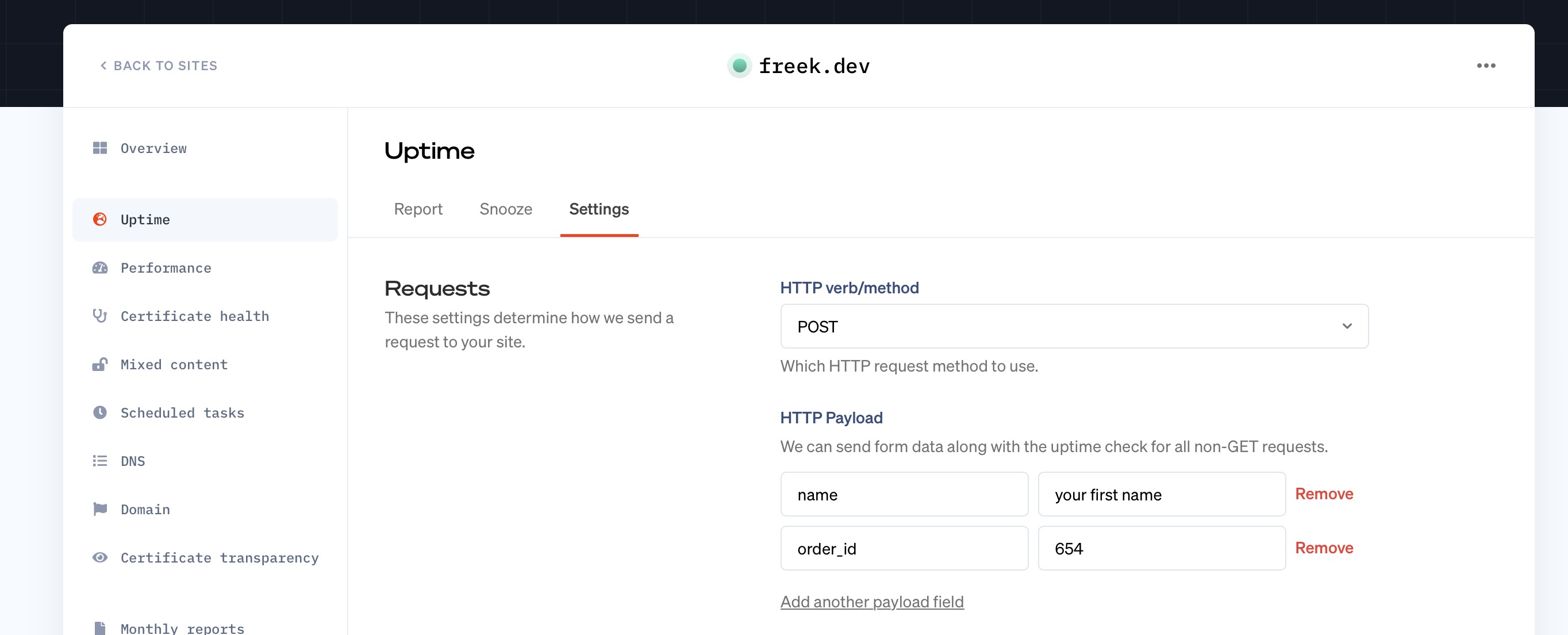
To monitor an HTTP form submission, you should:
- Set the method to `POST`
- Add any form field that should be included in the request
This results in an HTTP call like this:
```bash
$ curl --request POST https://yoursite.tld/form \
-d "name=your first name&order_id=654"
```
In other words: a standard HTTP form submission.
### JSON-encoded payloads
To encode the payload in your `POST` request as JSON, you can add the `Content-Type: application/json` HTTP header to the monitor settings like this.
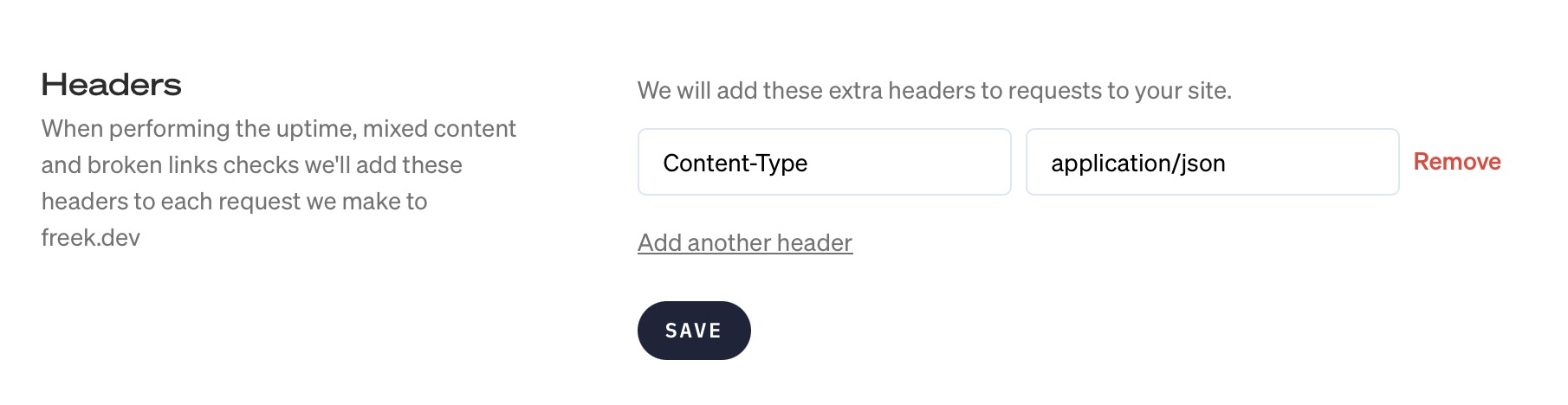
This will transform the HTTP payload from plain HTTP form content to JSON encoded content:
```bash
$ curl --request POST https://yoursite.tld/api/v1/ping \
-H "Content-Type: application/json" \
-d '{"name":"your first name","order_id":"654"}'
```
The data is still the same, just encoded differently.
## Crawler speeds
By default, we will check for broken links and mixed content using a _crawler_ that scans your entire site at 2 requests simultaneously, while waiting 250ms between requests.
You can speed up this process or slow it down, by heading over to the _monitor settings_ page and finding the _Crawler speed_ option at the bottom. We allow for the following presets:
- Slowest: 1 concurrent request, 1s delay
- Slow: 1 concurrent request, 500ms delay
- Default: 2 concurrent requests, 250ms delay
- Fast: 2 concurrent requests, 250ms delay
- Fastest: 4 concurrent requests, 100ms delay
If you're experiencing high load because of our crawler, change this setting to _Slowest_ or _Slow_ to reduce the impact.