# Snoozing alerts and advanced Slack notifications
We've introduced two very cool new features to Oh Dear: the ability to temporarily silence alerts and advanced Slack notifications.
## Snoozing alerts
You can now temporarily silence alerts being sent by Oh Dear. These _snoozes_ can be activated per check we perform.
Say you receive a notification your site is down, but you know the fix will take a while to finish? You can snooze for 5 minutes, an hour, 4 hours or a day.
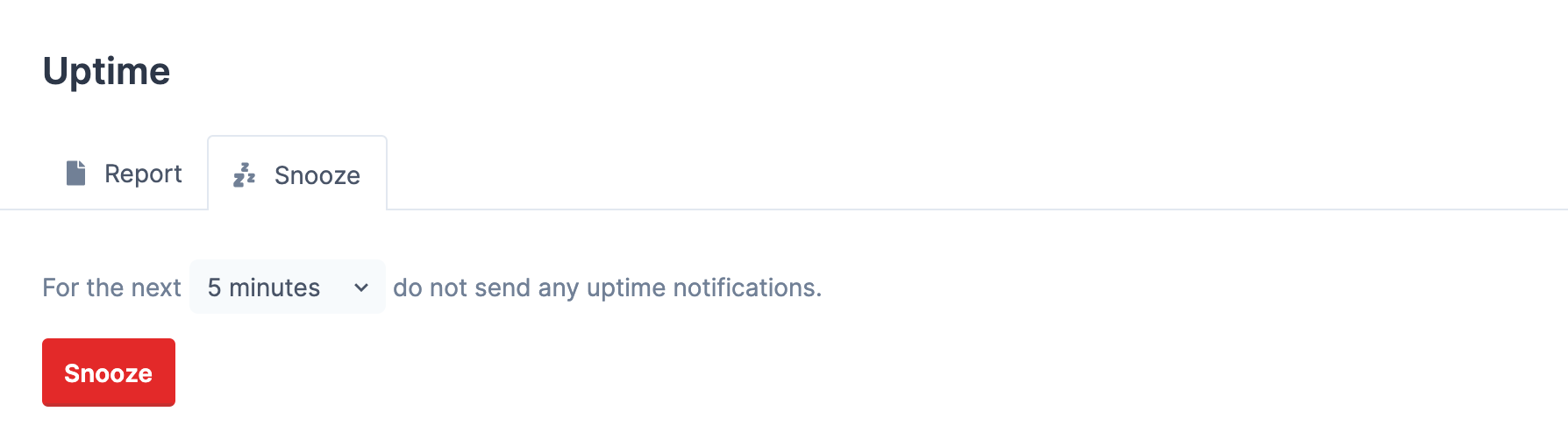
This way, you won't be distracted and your teammates won't be disturbed by something you're actively working on!
_Want to learn more? Have a look at [our documentation on how snoozing works](/docs/notifications/snoozing)._
## Advanced Slack notifications
We've rolled out a new way of linking your Slack Workspace to Oh Dear. Our first implementation used _Slack Webhooks_, but this new method makes advanced use of the Slack API. This allows two-way communication between your Slack Workspace & Oh Dear.
Here's an example of a test notification being sent:
_(This might, in fact, be one of the only implementations of Laravel's `php artisan inspire` in the wild!)_
## Snoozing & rechecking alerts via Slack
Now that we have communications established, we can use these Slack notifications to _Snooze_ incoming notifications and request them be re-checked whenever we want.
Let's break down what is happening here:
1. You can immediately request a new check to confirm the issue (or have it re-check the moment you fixed the problem)
2. You can immediately snooze the notification right from Slack, no need to go to the Oh Dear dashboard
We can live-update the Slack notification and append any new data to it. You'll see who snoozed it and who requested the recheck.
If a recovery comes in, it'll be appended to the original messages too.
## Clear overview of your channels
As an added benefit: you can now choose which channel to send the alerts to directly from Oh Dear, this will make it more clear which notifications get sent to which channel.
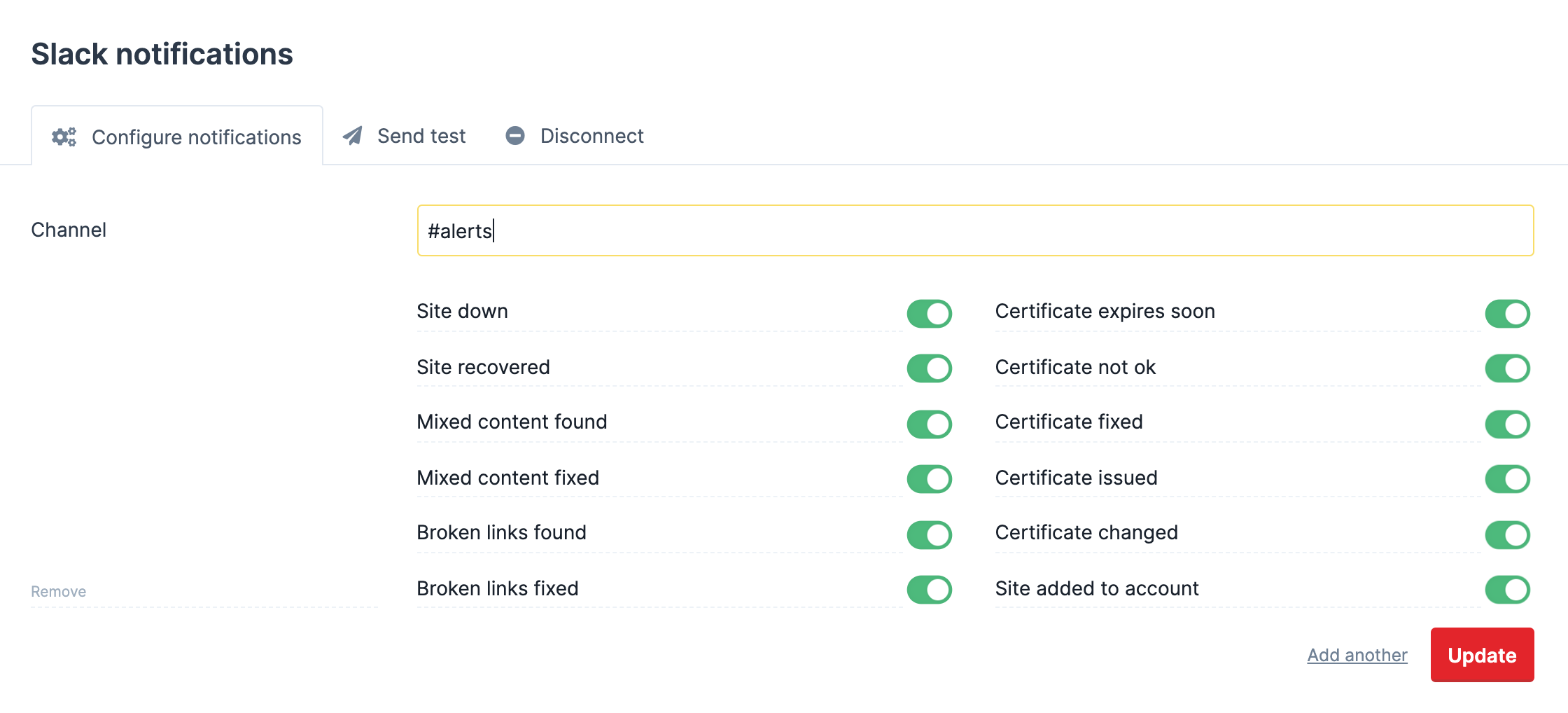
Previously, you might have a list of a couple of webhooks, but it isn't obvious which hook is associated with which channel.
Now, you'll see this directly from your Oh Dear notification settings.
## Activate these new Slack implementations in your account
To activate these new Slack notifications, head over to your [Slack notification settings](/team-settings/notifications/slack-api) and link your Slack Workspace to Oh Dear.
For some more reading, have a look at our [documentation on the Slack API integration](/docs/notifications/slack).
We hope you'll enjoy these new powerful notifications!