Opsgenie
Opsgenie shuts down on 5 April 2027. This integration opens and closes alerts in Opsgenie when Oh Dear detects a problem. It does not provide on-call schedules or escalations. Before that date, send these alerts to another Oh Dear channel (email, Slack, Teams, Discord, Telegram, Google Chat, Pushover, ntfy, SMS via Vonage, webhooks, or PagerDuty). If you still need on-call rotations, move that part to an incident tool and keep Oh Dear as the check that raises the alert.
Opsgenie is a modern incident management platform. It provides, on-call schedule management, escalations and incident tracking.
Oh Dear will automatically open and close alerts at Opsgenie when we detect problems. Opsgenie will then notify the right people that are on-call through email, SMS, phone calls and iOS & Android push notifications.
Setting up Opsgenie #
To set up the integration, you'll need to create an API key in Opsgenie. You can do this by going to:
- Teams
- Select your team from the list
- Head over to "Integrations"
- Click "Add integration"
- Choose "API" from the bottom list of "All Integrations"
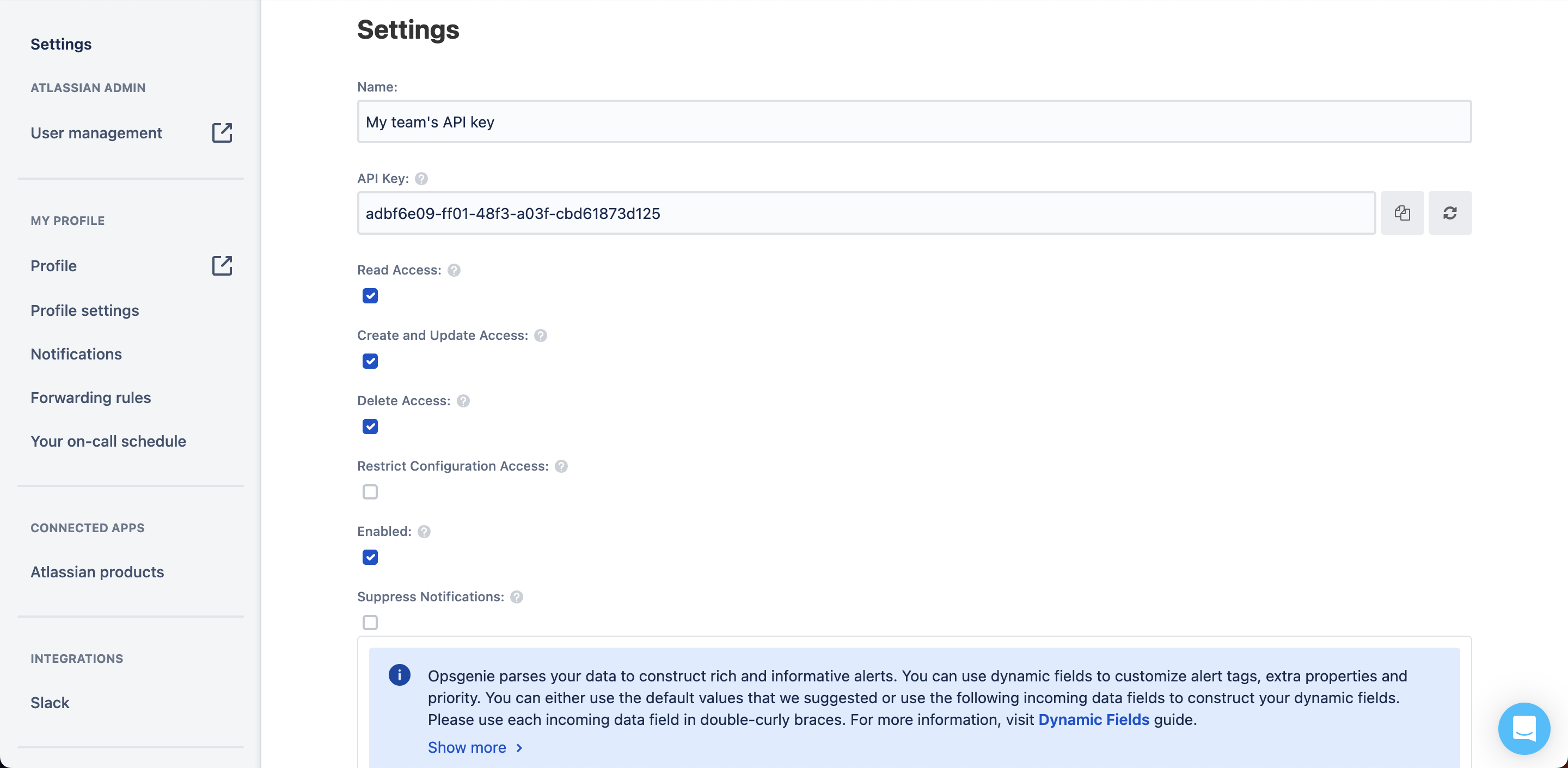
API key note: there are 2 kinds of API keys available in Opsgenie, there are also API keys under Settings > API key management. These are different API keys and do not allow for notifications. We need the API keys as configured under the Teams menu item.
Configuring Oh Dear #
Once you have your API key, you can configure the integration in Oh Dear. Go to the teams notifications page, and click the "Add configuration" button. Select "Opsgenie" from the list of options, and specify the API key you created earlier at Opsgenie.
If your Opsgenie account is hosted on the EU region, don't forget to toggle on "Use EU endpoint".
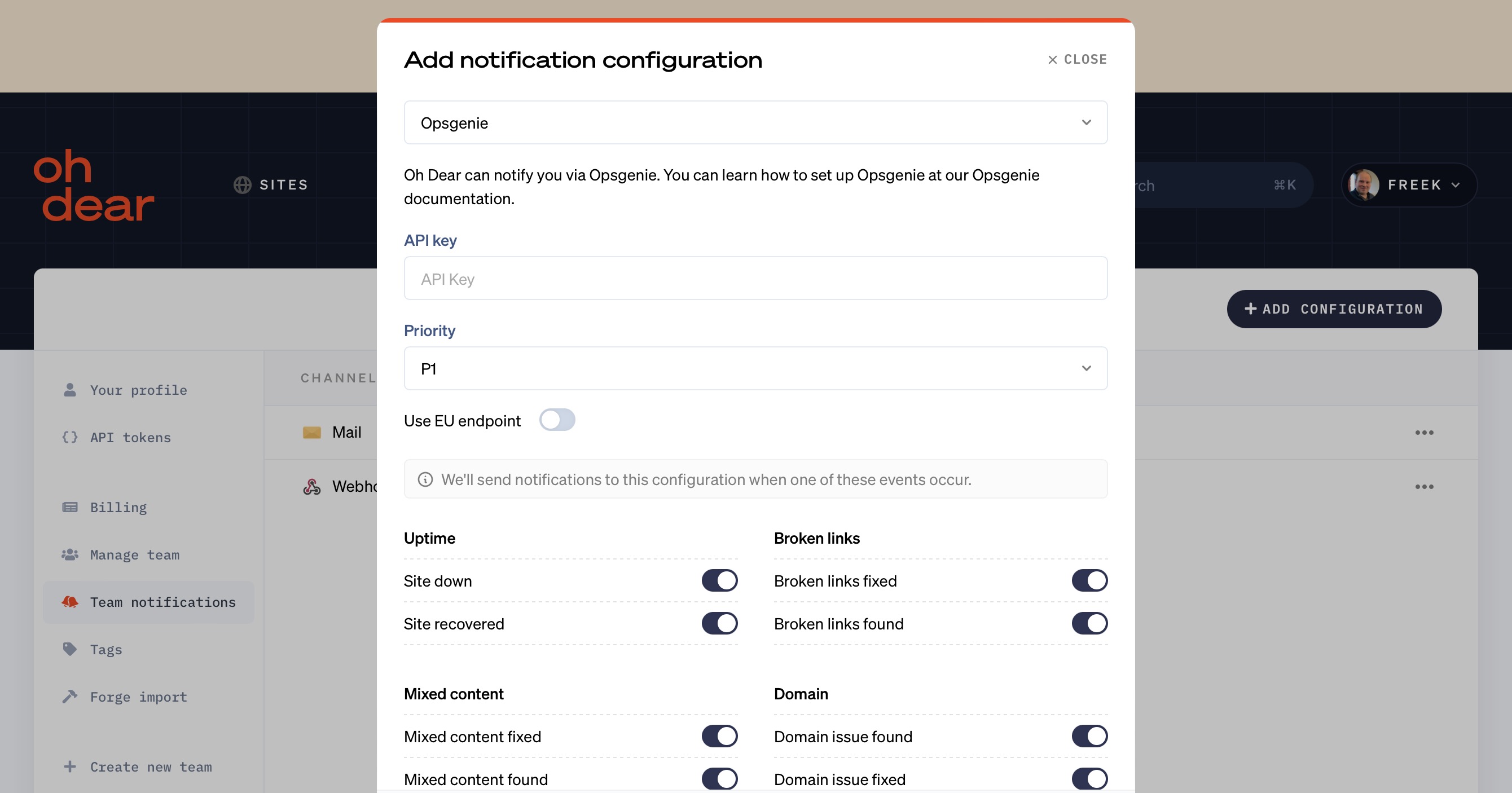
With this set up, we will create and close alerts at Opsgenie for the events you choose for all your monitors.
To test out the integration, you can click open the dropdown next to the configuration, and choose "Send test notification". If everything is set up correctly, you should see a test alert appear in Opsgenie.

Monitor specific alerts #
If you only want to create Opsgenie alerts for a specific site, head over to the monitor notification settings page and click the "Add configuration" button. Select "Opsgenie" from the list of options, and specify the API key you created earlier at Opsgenie.
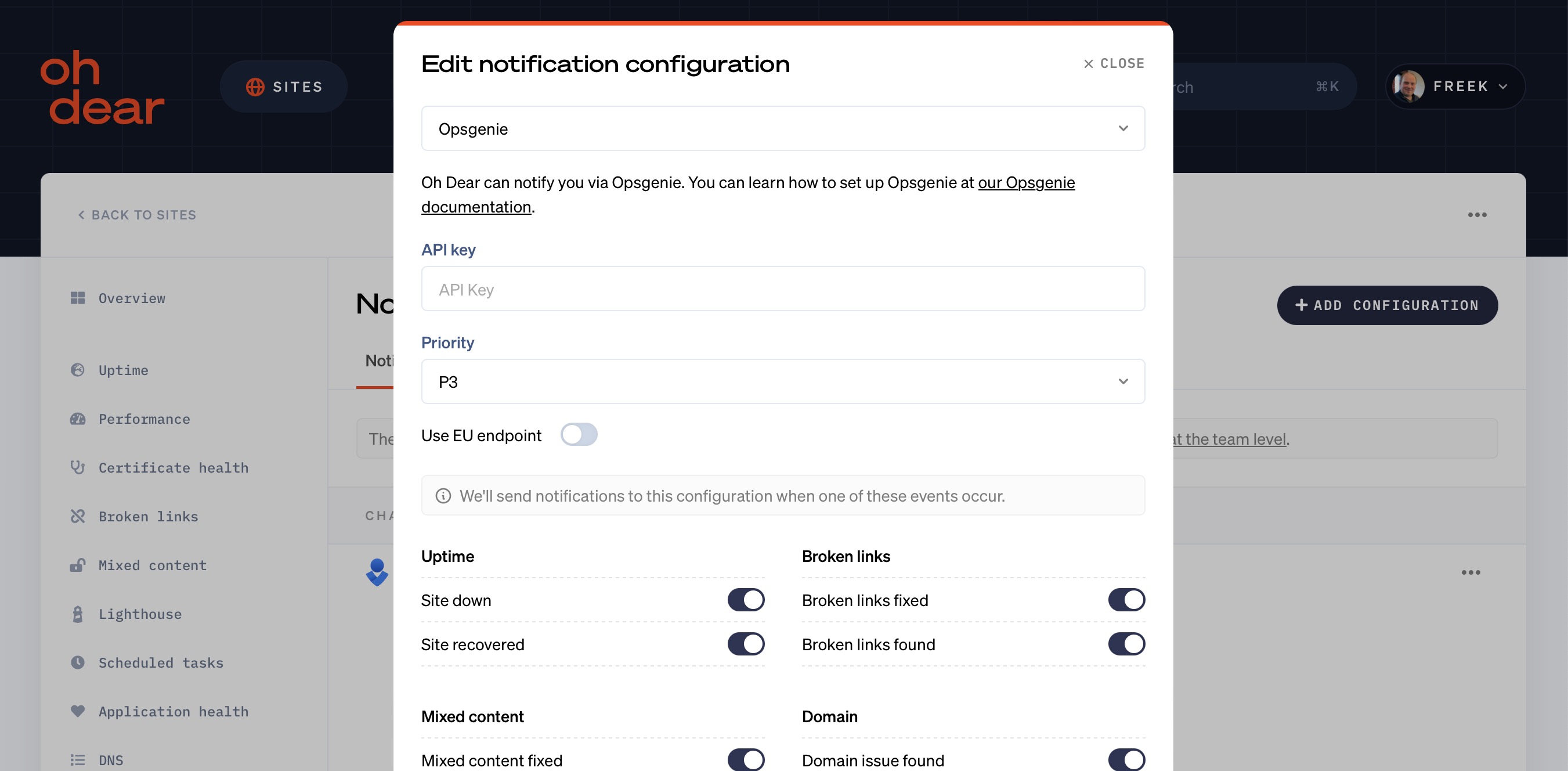
To test out the integration, you can click open the dropdown next to the configuration, and choose "Send test notification". If everything is set up correctly, you should see a test alert appear in Opsgenie.
Feel free to reach out via support@ohdear.app or on X via @OhDearApp if you have any other questions. We'd love to help!