Our CLI tool
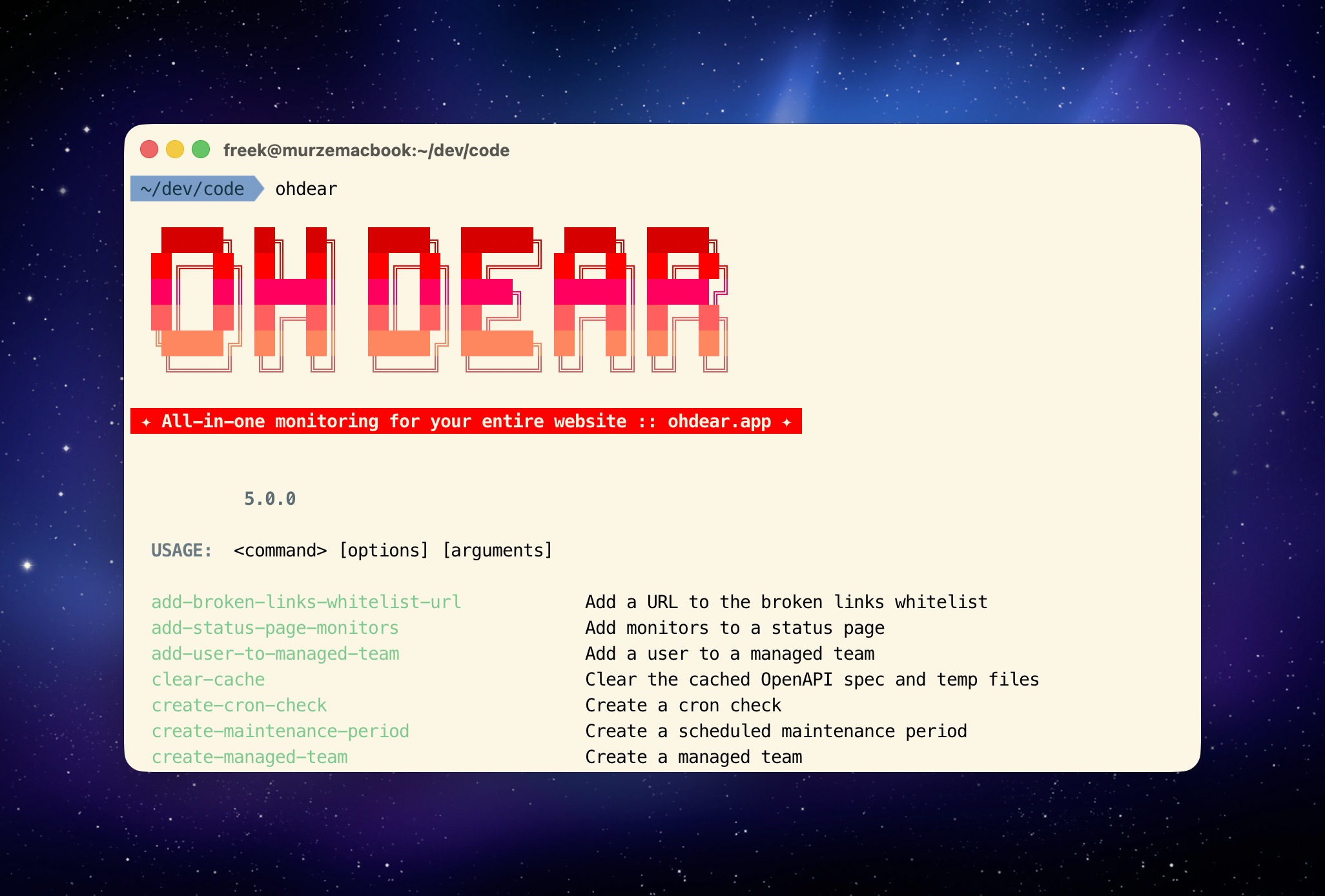
Our CLI tool allows you to interact with Oh Dear from the command line. Every Oh Dear API endpoint has a corresponding command.
AI coding assistants can also use this tool to manage your monitors, investigate downtime, and more. Learn how to set up AI with Oh Dear.
Installation #
Requires PHP 8.4+
Via Composer
composer global require ohdearapp/ohdear-cli
Make sure Composer's global bin directory is in your PATH. You can find the path by running:
composer global config bin-dir --absolute
Verify the installation:
ohdear --version
Via Docker
docker run --rm ghcr.io/ohdearapp/ohdear-cli:latest
Authentication #
First, create an API token on your API token page.
Then, log in:
ohdear login
You'll be prompted for your API token. It will be validated and stored locally at ~/.ohdear/config.json.
To log out and clear your stored credentials:
ohdear logout
If any command returns a 401 error, your token is invalid or expired. Run ohdear login again.
Available commands #
List all available commands:
ohdear list
Every command supports --help for full parameter details:
ohdear get-monitor --help
Monitors #
# List all monitors
ohdear list-monitors

# Get a specific monitor
ohdear get-monitor --monitor-id=123

# Find a monitor by URL
ohdear get-monitor-by-url --field url="https://example.com"

# Create a new monitor
ohdear create-monitor --field url="https://example.com" --field team_id=1

# Update a monitor
ohdear update-monitor --monitor-id=123 --field label="My site"

# Delete a monitor
ohdear delete-monitor --monitor-id=123
Checks #
# Get a check summary for a monitor
ohdear get-check-summary --monitor-id=123 --check-type=uptime

# Enable or disable a check
ohdear enable-check --check-id=456
ohdear disable-check --check-id=456

# Request an immediate check run
ohdear request-check-run --check-id=456

# Snooze or unsnooze check notifications
ohdear snooze-check --check-id=456 --field minutes=60
ohdear unsnooze-check --check-id=456
Uptime and downtime #
# Get uptime percentages
ohdear get-uptime --monitor-id=123

# Get downtime periods
ohdear get-downtime --monitor-id=123

# Delete a downtime period
ohdear delete-downtime --downtime-id=789

# Get uptime metrics (HTTP, Ping, TCP)
ohdear http-uptime-metrics --monitor-id=123
ohdear ping-uptime-metrics --monitor-id=123
ohdear tcp-uptime-metrics --monitor-id=123
Broken links and mixed content #
# List broken links for a monitor
ohdear list-broken-links --monitor-id=123

# Add a URL to the broken links whitelist
ohdear add-broken-links-whitelist-url --monitor-id=123 --field url="https://example.com/known-404"

# List mixed content
ohdear list-mixed-content --monitor-id=123
Certificate health #
# Get certificate health for a monitor
ohdear get-certificate-health --monitor-id=123

# List detected certificates
ohdear list-detected-certificates --monitor-id=123

# Get a specific detected certificate
ohdear get-detected-certificate --detected-certificate-id=456
DNS monitoring #
# Get DNS history
ohdear get-dns-history --monitor-id=123

# Get a specific DNS history item
ohdear get-dns-history-item --dns-history-item-id=456

# Get domain registration info
ohdear get-domain-info --monitor-id=123
Cron checks #
# List cron checks
ohdear list-cron-checks --monitor-id=123

# Create a cron check
ohdear create-cron-check --monitor-id=123 --field name="Daily backup" --field frequency_in_minutes=1440

# Update a cron check
ohdear update-cron-check --cron-check-definition-id=456 --field grace_time_in_minutes=10

# Sync cron checks in bulk
ohdear sync-cron-checks --monitor-id=123 --input='[{"name":"Backup","frequency_in_minutes":1440}]'

# Delete a cron check
ohdear delete-cron-check --cron-check-definition-id=456

# Snooze or unsnooze a cron check
ohdear snooze-cron-check --cron-check-definition-id=456
ohdear unsnooze-cron-check --cron-check-definition-id=456
Maintenance periods #
# List maintenance periods
ohdear list-maintenance-periods --monitor-id=123

# Start immediate maintenance (default 60 minutes)
ohdear start-maintenance --monitor-id=123

# Stop active maintenance
ohdear stop-maintenance --monitor-id=123

# Create a scheduled maintenance period
ohdear create-maintenance-period --field monitor_id=123 --field starts_at="2026-03-01 00:00:00" --field ends_at="2026-03-01 06:00:00"

# Update or delete a maintenance period
ohdear update-maintenance-period --maintenance-period-id=456 --field ends_at="2026-03-01 08:00:00"
ohdear delete-maintenance-period --maintenance-period-id=456
Recurring maintenance periods #
# List recurring maintenance periods
ohdear list-recurring-maintenance-periods --monitor-id=123

# Create a recurring maintenance period
ohdear create-recurring-maintenance-period --field monitor_id=123 --field day_of_week=0 --field start_time="02:00" --field end_time="04:00"

# Update or delete
ohdear update-recurring-maintenance-period --recurring-maintenance-period-id=456 --field end_time="05:00"
ohdear delete-recurring-maintenance-period --recurring-maintenance-period-id=456
Status pages #
# List all status pages
ohdear list-status-pages

# Get a specific status page
ohdear get-status-page --status-page-id=123

# Create a status page
ohdear create-status-page --field name="My Status Page" --field team_id=1

# Add or remove monitors from a status page
ohdear add-status-page-monitors --status-page-id=123 --field monitors='[456, 789]'
ohdear remove-status-page-monitor --status-page-id=123 --monitor-id=456

# Delete a status page
ohdear delete-status-page --status-page-id=123
Status page updates #
# List updates for a status page
ohdear list-status-page-updates --status-page-id=123

# Create a status page update
ohdear create-status-page-update --field status_page_id=123 --field title="Investigating" --field text="Looking into it." --field severity=info

# Update or delete
ohdear update-status-page-update --status-page-update-id=456 --field title="Resolved" --field severity=resolved
ohdear delete-status-page-update --status-page-update-id=456
Status page update templates #
# List templates
ohdear list-status-page-update-templates

# Create a template
ohdear create-status-page-update-template --field title="Scheduled maintenance" --field text="We will be performing maintenance."

# Update or delete
ohdear update-status-page-update-template --status-page-update-template-id=456 --field text="Updated text"
ohdear delete-status-page-update-template --status-page-update-template-id=456
Application health #
# List application health checks
ohdear list-application-health-checks --monitor-id=123

# Get application health check history
ohdear get-application-health-check-history --monitor-id=123

# Snooze or unsnooze
ohdear snooze-application-health-check --application-health-check-id=456
ohdear unsnooze-application-health-check --application-health-check-id=456
Lighthouse reports #
# List Lighthouse reports
ohdear list-lighthouse-reports --monitor-id=123

# Get the latest report
ohdear get-latest-lighthouse-report --monitor-id=123

# Get a specific report
ohdear get-lighthouse-report --lighthouse-report-id=456
AI responses #
# List AI responses
ohdear list-ai-responses --monitor-id=123

# Get the latest AI response
ohdear get-latest-ai-response --monitor-id=123

# Get a specific AI response
ohdear get-ai-response --ai-response-id=456
Ports and DNS blocklist #
# List port scan history
ohdear list-ports-history-items --monitor-id=123
ohdear get-ports-history-item --ports-history-item-id=456

# List DNS blocklist history
ohdear list-dns-blocklist-history-items --monitor-id=123
ohdear get-dns-blocklist-history-item --dns-blocklist-history-item-id=456
Sitemap #
# Get sitemap check results
ohdear get-sitemap-results --monitor-id=123
Tags and tag groups #
# List and create tags
ohdear list-tags
ohdear create-tag --field name="Production" --field color="#ff0000"

# List, create, update, and delete tag groups
ohdear list-tag-groups
ohdear create-tag-group --field name="Environment" --field tag_ids='[1, 2]'
ohdear update-tag-group --tag-group-id=456 --field name="Updated name"
ohdear delete-tag-group --tag-group-id=456
Notification destinations #
Notification destinations can be managed at the team, monitor, tag, and tag group level. Each level supports list, create, update, and delete operations.
# Team notification destinations
ohdear list-team-notification-destinations --team-id=1
ohdear create-team-notification-destination --team-id=1 --field type=slack --field label="Ops"

# Monitor notification destinations
ohdear list-monitor-notification-destinations --monitor-id=123
ohdear create-monitor-notification-destination --monitor-id=123 --field type=email --field label="Alerts"

# Tag and tag group notification destinations follow the same pattern
ohdear list-tag-notification-destinations --tag-id=1
ohdear list-tag-group-notification-destinations --tag-group-id=1
Account #
# Display authenticated user info
ohdear get-me
Output format #
All commands output human readable tables by default. You can switch to JSON or YAML output for scripting:
# JSON output
ohdear list-monitors --json

# YAML output
ohdear list-monitors --yaml

# Minified JSON
ohdear list-monitors --minify
Caching #
The CLI caches the OpenAPI specification for 24 hours to avoid repeated downloads. To clear the cache:
ohdear clear-cache
AI agent skill #
The Oh Dear CLI includes a skill for AI coding assistants. Install it with:
ohdear install-skill
This allows AI agents to use the Oh Dear CLI to manage your monitors, investigate downtime, and more.
Feel free to reach out via support@ohdear.app or on X via @OhDearApp if you have any other questions. We'd love to help!