How to configure maintenance windows
An active maintenance window prevents notifications from being sent. This is handy during planned downtime or while deploying your application.
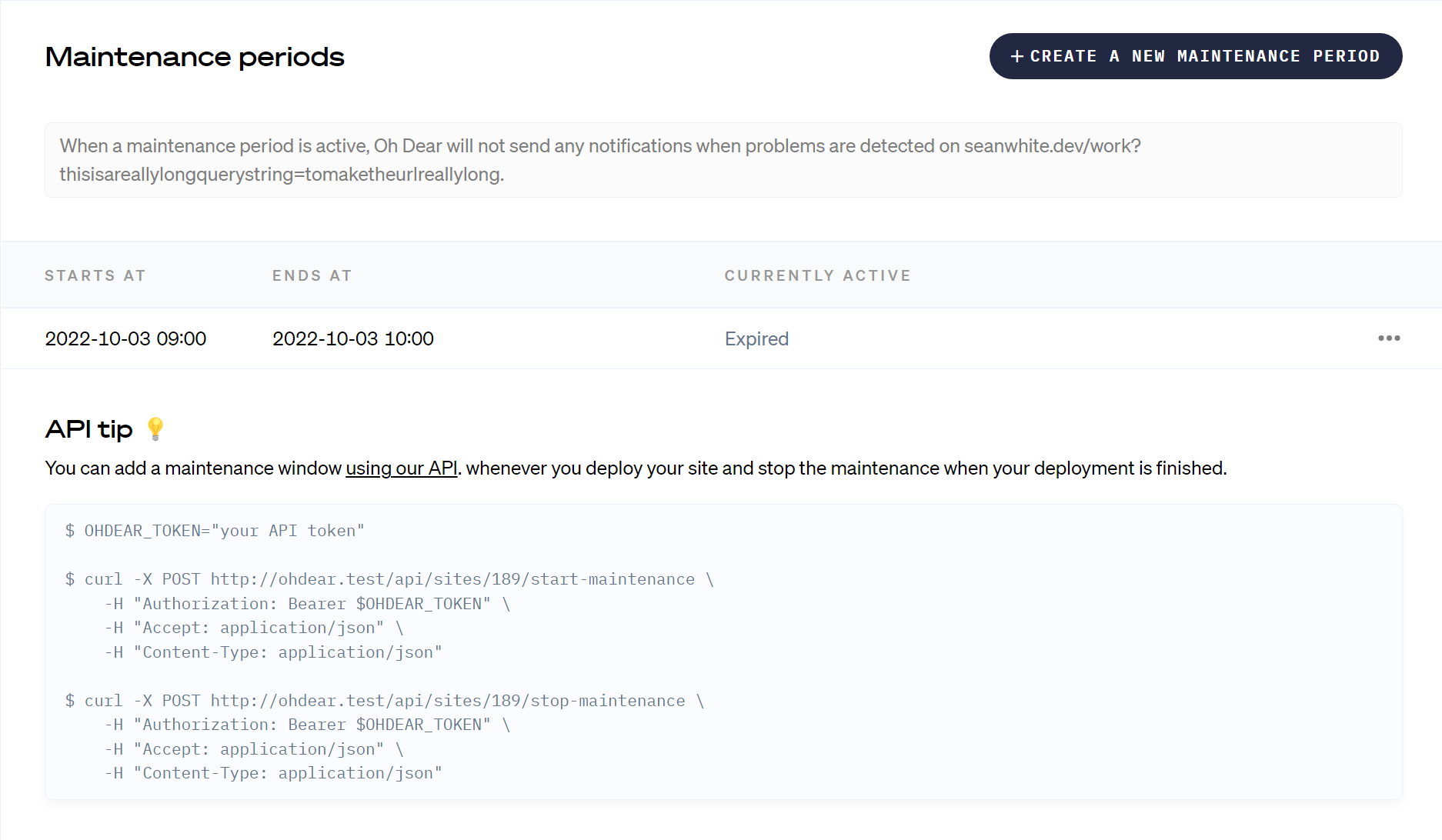
For example when you integrated Application Health Monitoring you can let Oh Dear keep an eye on Horizon (Laravel Redis queue manager). The moment Horizon goes down, Oh Dear can detect this and can notify you.
When deploying, you'll likely restart Horizon at some point in your script. When restarting, Horizon first shuts down and then starts again. This happens almost instantly, but Oh Dear can still detect this small window of downtime, resulting in an unwanted notification.
How to initiate and end a maintenance window #
You can initiate a maintenance window via the API, the SDK or with the Oh Dear CLI package. Depending on the framework you have several options to implement the maintenance windows feature.
Laravel #
The easiest and most likely way of implementing it for Laravel apps is using the CLI package and extending your current deployment script.
Add this command at the start of your script: ohdear-cli maintenance period:start [site-id] [seconds]. The site-id is the ID of your site in Oh Dear (find it with ohdear-cli sites:list). The seconds value is the maximum time the maintenance window should be active - set it longer than your deployment takes. At the end of your script, end the maintenance window with ohdear-cli maintenance period:stop [site-id].
An alternative way to work with maintenance windows without any package is via the API by using curl. Which is explained in the next section.
Any other framework #
For any other framework you can use the same approach but you will need to use the Oh Dear API directly. First set a variable containing the API token like this:
$ OHDEAR_TOKEN="your API token"
$ curl -X POST https://ohdear.app/api/monitors/1/start-maintenance \
    -H "Authorization: Bearer $OHDEAR_TOKEN" \
    -H 'Accept: application/json' \
    -H 'Content-Type: application/json'
Then at the end of your script you can end the maintenance window with:
$ curl -X POST https://ohdear.app/api/monitors/1/stop-maintenance \
    -H "Authorization: Bearer $OHDEAR_TOKEN" \
    -H 'Accept: application/json' \
    -H 'Content-Type: application/json'
Recurring maintenance periods #
For scheduled maintenance that happens regularly (like nightly backups or weekly updates), you can create recurring maintenance periods. These automatically generate maintenance windows based on a schedule you define.
How recurring maintenance periods work #
Recurring maintenance periods support three recurrence patterns:
- Daily: Creates a maintenance window every day at the specified time
- Weekly: Creates maintenance windows on specific days of the week
- Monthly: Creates a maintenance window on a specific day each month
When you create a recurring maintenance period, Oh Dear generates individual maintenance windows for the next 7 days. These windows are automatically regenerated hourly, so you always have upcoming maintenance periods scheduled.
Setting up a recurring maintenance period #
- Navigate to your site in Oh Dear
- Go to Maintenance periods and click Recurring
- Click Create a recurring period
- Choose your recurrence type (Daily, Weekly, or Monthly)
- For weekly recurrence, select which days of the week
- For monthly recurrence, choose the day of the month
- Set the start and end times for the maintenance window
- Click Save
The times you specify are in your team's timezone. Oh Dear will automatically convert them to UTC for storage and display them correctly across time zones.
Managing recurring periods #
You can edit a recurring maintenance period at any time. When you save changes, Oh Dear will delete any future scheduled windows and regenerate them with the new settings.
When deleting a recurring maintenance period, you can choose whether to also delete any future scheduled maintenance windows. Past maintenance windows are always preserved for historical reference.
Identifying recurring maintenance periods #
In the maintenance periods list, windows generated from a recurring period are marked with a repeat icon. Hovering over the icon shows the name of the recurring period that created it.
Good to know #
Maintenance windows default to a 60-minute period and will automatically end after that time. For more details, see Maintenance windows via the API and Maintenance windows via the SDK.
Feel free to reach out via support@ohdear.app or on X via @OhDearApp if you have any other questions. We'd love to help!